Your Denti.AI kit uses Hollyland Lark M2 wireless microphones. The microphones charge inside their charging case, and the case charges from a wall outlet. This guide shows you how to charge everything and what each light means, so your mics are always ready for your next appointment.
What you'll need
- The charging case and both microphones
- The USB-C cable that came with your kit
- A USB wall charging block (recommended), plugged into a wall outlet
How to charge your microphones
1Check the case light
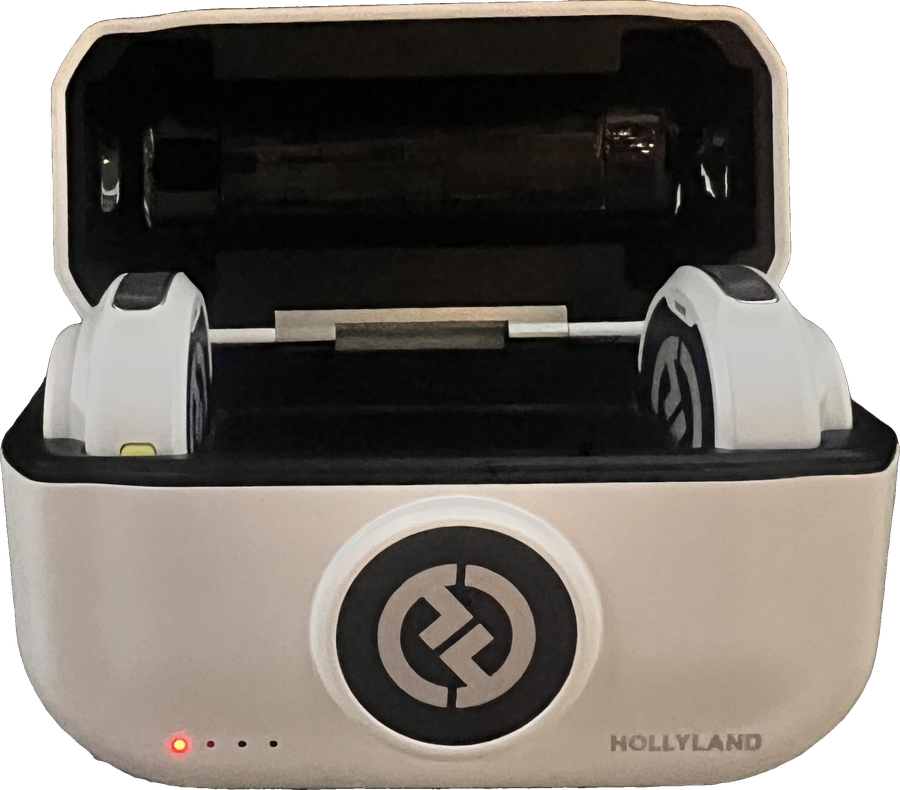
Look at the small light on the front of the case. A solid red light means the case battery is empty, and the microphones inside are likely out of charge too. Time to plug in.
2Place both microphones in the case
Set each microphone into its slot. They snap into place magnetically. Make sure each one is fully seated so its charging contacts touch the case.
3Plug the case into the wall
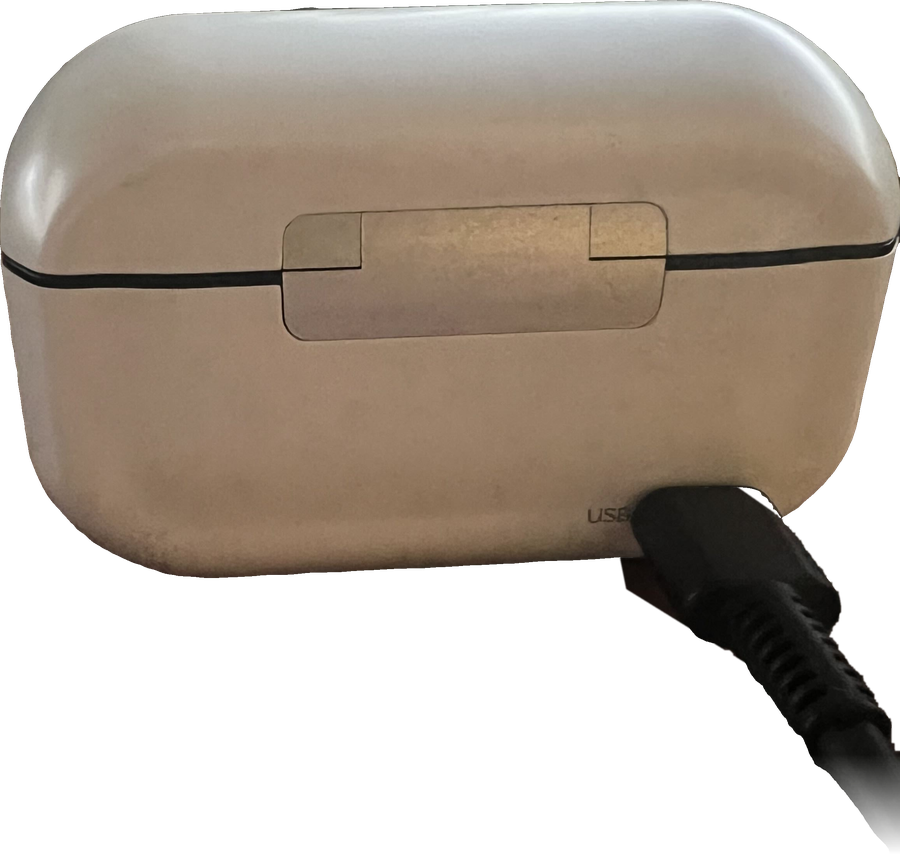
Connect the USB-C cable to the port on the back of the case. Plug the other end into a wall charging block in a wall outlet.
4Confirm it's charging
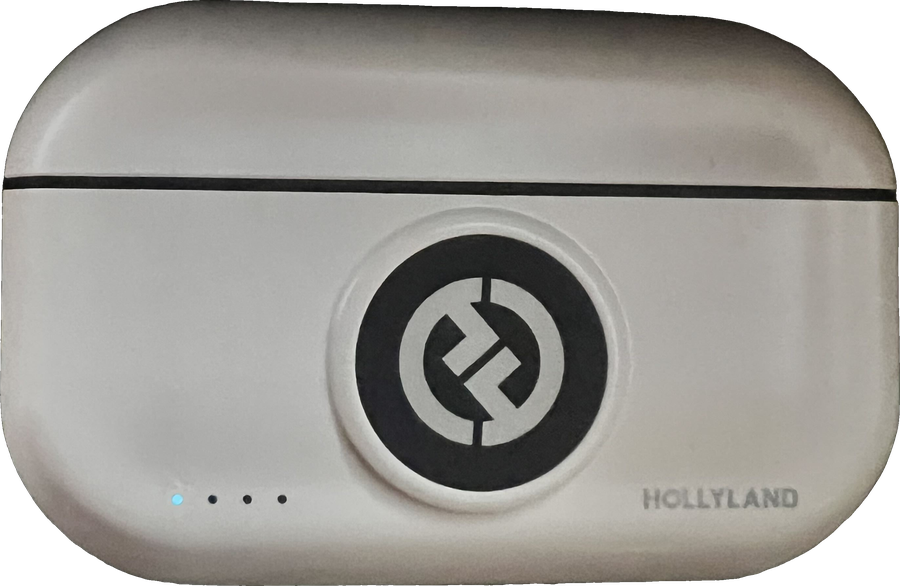
You should see a blinking white light on the front of the case. This means the case is charging. It charges itself first, then the microphones.
5Check the microphone lights
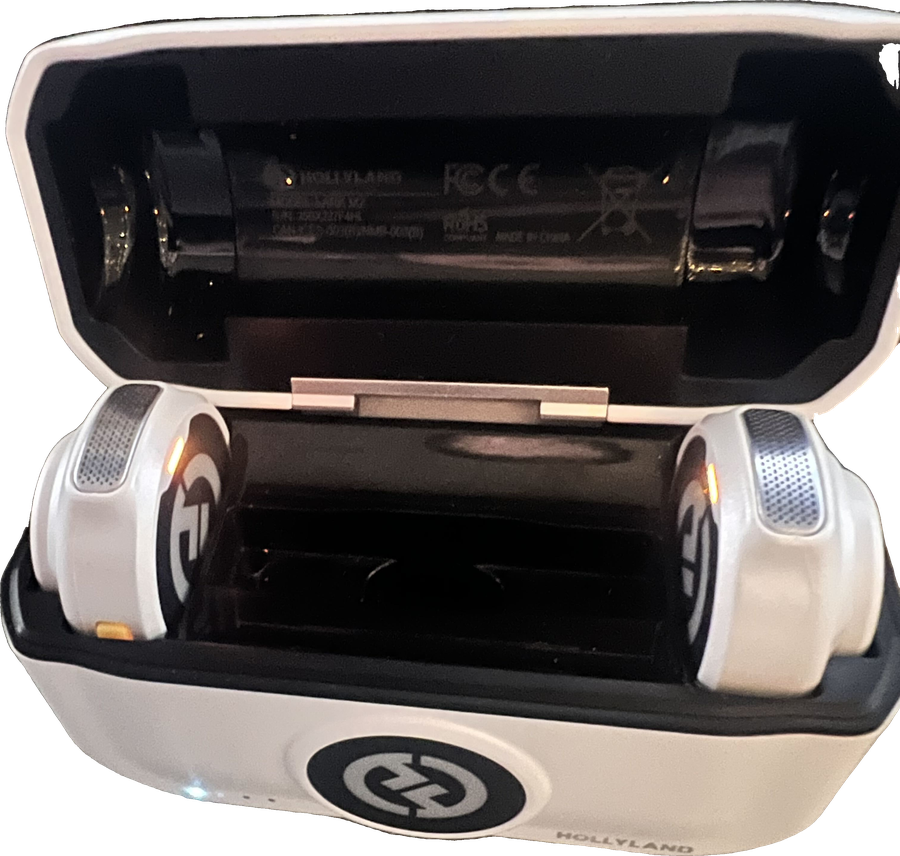
With the lid open, each microphone shows a small orange light while it charges. The light turns solid green when that mic is fully charged. A full charge takes about 1.5 hours.
6Close the lid and leave it plugged in
Keep the microphones in the case whenever you're not using them. Charging at the end of each day means a full battery every morning.
What the lights mean
Microphone lights (when worn / out of the case)
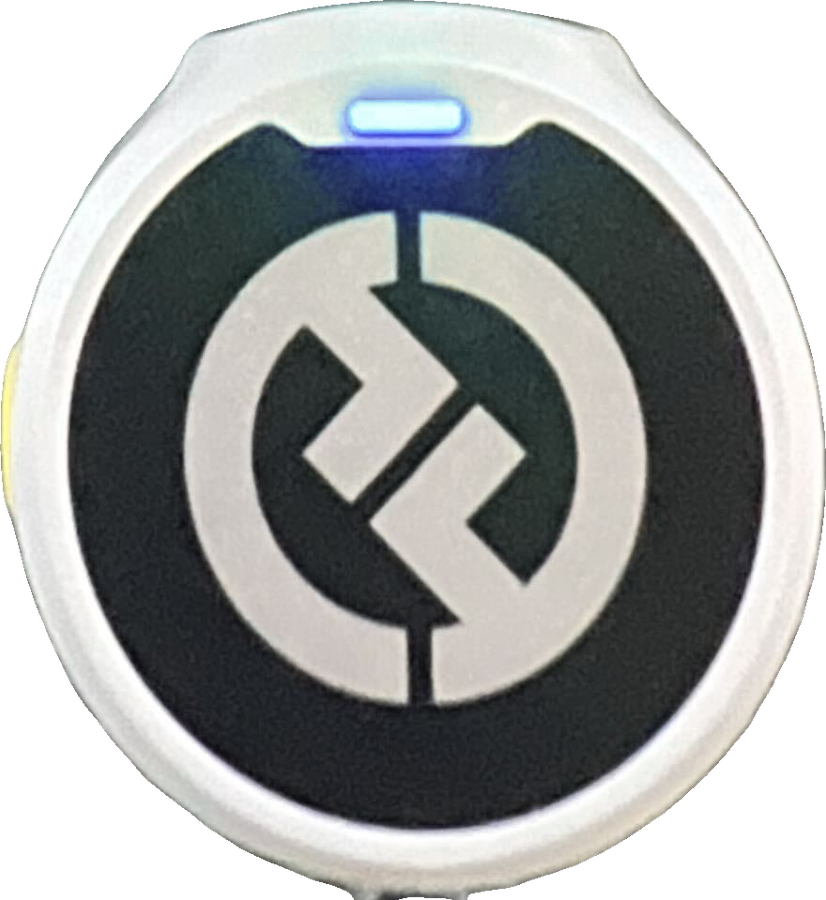 | Blue: Standard mode The mic is connected and ready. This mode gives you the best battery life and a range of up to 1,000 ft (line of sight). |
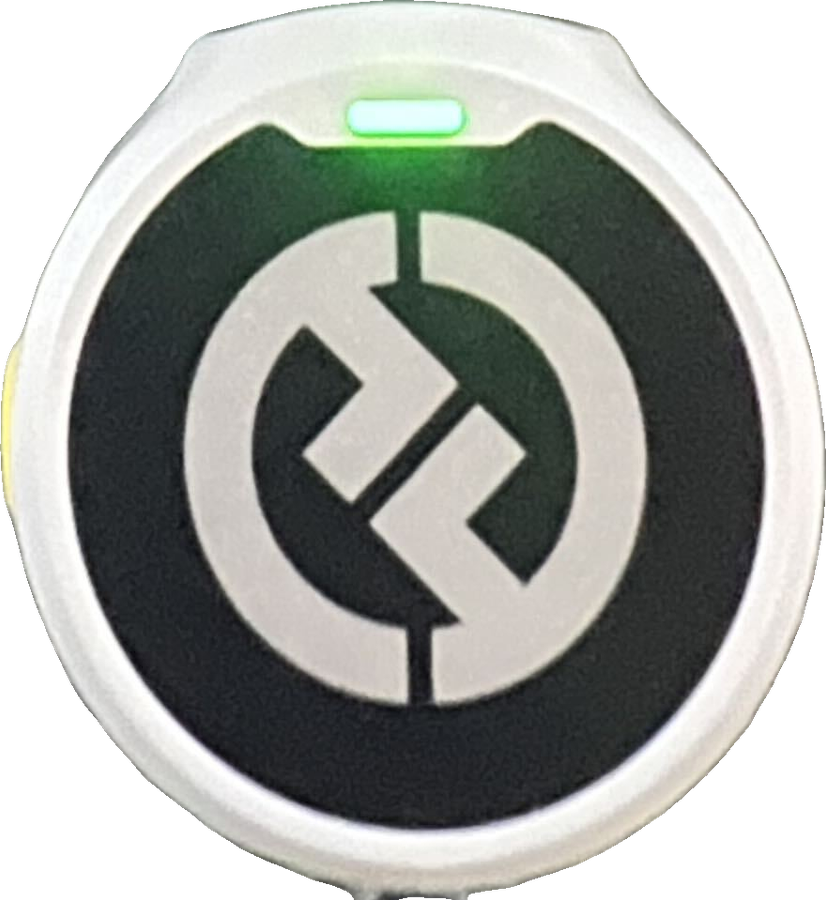 | Green: Noise Reduction mode Background noise is being filtered out. This mode uses more battery, so you may need to charge your mics more often. |
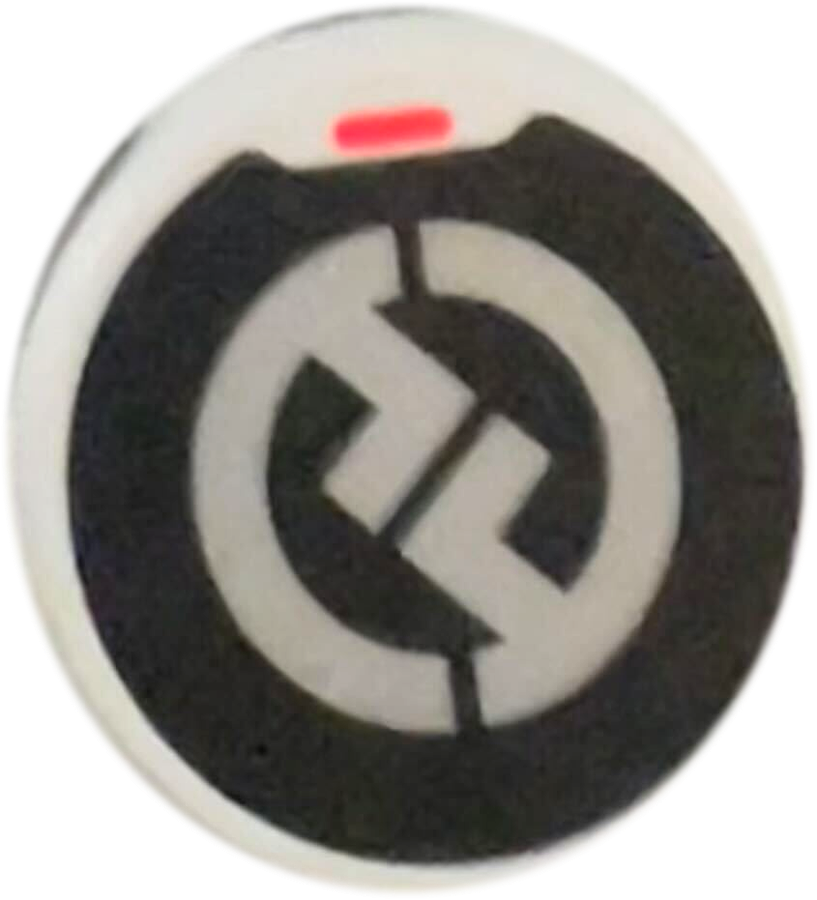 | Red / orange: Needs charging The microphone battery is empty or very low. Put it back in the case and charge it. |
Microphone lights (in the case)
Orange: Charging The microphone is charging in the case. | |
Solid green: Fully charged The microphone is ready to use. |
Charging case lights
Solid red: Case is out of charge The case battery is empty and can't charge the mics. Plug it into a wall outlet. | |
Blinking white: Charging The case is plugged in and charging itself, then the microphones. | |
1 to 4 lights on: Case battery level Each light is about 25%. Four lights on means the case is full. |
Battery tips
- A fully charged microphone lasts about 10 hours in Standard mode. Noise Reduction mode shortens this.
- A full case can recharge both microphones about 2 times without being plugged in.
- Store the mics in the case between patients and overnight.
- Charge in a room-temperature spot, away from heaters and direct sunlight.
Troubleshooting
No blinking white light after plugging in? Try a different wall outlet or charging block, and make sure the USB-C cable is pushed all the way into the case.
No orange light on a microphone in the case? Take the mic out and place it back in its slot so it snaps into place. Check that the case itself has charge.
Still having trouble? Contact the Denti.AI support team and we'll help you get back up and running.
Comments
0 comments
Please sign in to leave a comment.